

25 Simple Prompts for Automating Excel Tasks
25 Simple Prompts for Automating Excel Tasks
If you’ve ever spent hours working with spreadsheets, adjusting formulas, cleaning data, or formatting tables, you know how time-consuming and repetitive it can get. Excel, while an incredibly powerful tool, often becomes a bottleneck in your productivity. But there’s a solution. Automating Excel tasks can save you hours every week and eliminate repetitive work. You don’t need advanced programming skills to automate your tasks. With just a few simple prompts, you can take your productivity to the next level.
In this article, we’ll cover 25 simple prompts for automating Excel tasks that can help you clean up data, streamline formulas, and speed up your work. By the end, you’ll know how to make Excel work smarter, not harder.
Why Automate Excel Tasks?
Save Time
One of the biggest advantages of automation is the time savings. Automating repetitive tasks, such as applying formulas or formatting, allows you to focus on the analysis and decision-making parts of your work. You’ll finish tasks faster and with greater accuracy.
Reduce Errors
Manually entering data or writing formulas often leads to mistakes. Automation ensures that the tasks are done consistently and correctly every time, reducing the potential for human error.
Boost Productivity
When you automate tasks, you free up your time to focus on more complex and strategic work. The mundane tasks are taken care of, and you’re left with the fun part: analyzing data and deriving insights.
Now, let’s dive into the 25 simple prompts you can use to automate your Excel tasks.
1. Data Cleaning and Formatting
1. Remove Duplicates
A common issue in Excel is duplicate data, which can cause confusion and inaccuracies. Use this prompt to automatically remove duplicates:
“Remove duplicate rows based on column [X].”

2. Standardize Date Formats
Inconsistent date formats are a nightmare in data analysis. You can quickly standardize all dates to a single format with this prompt:
“Convert all dates to the format [YYYY-MM-DD].”
3. Trim Extra Spaces
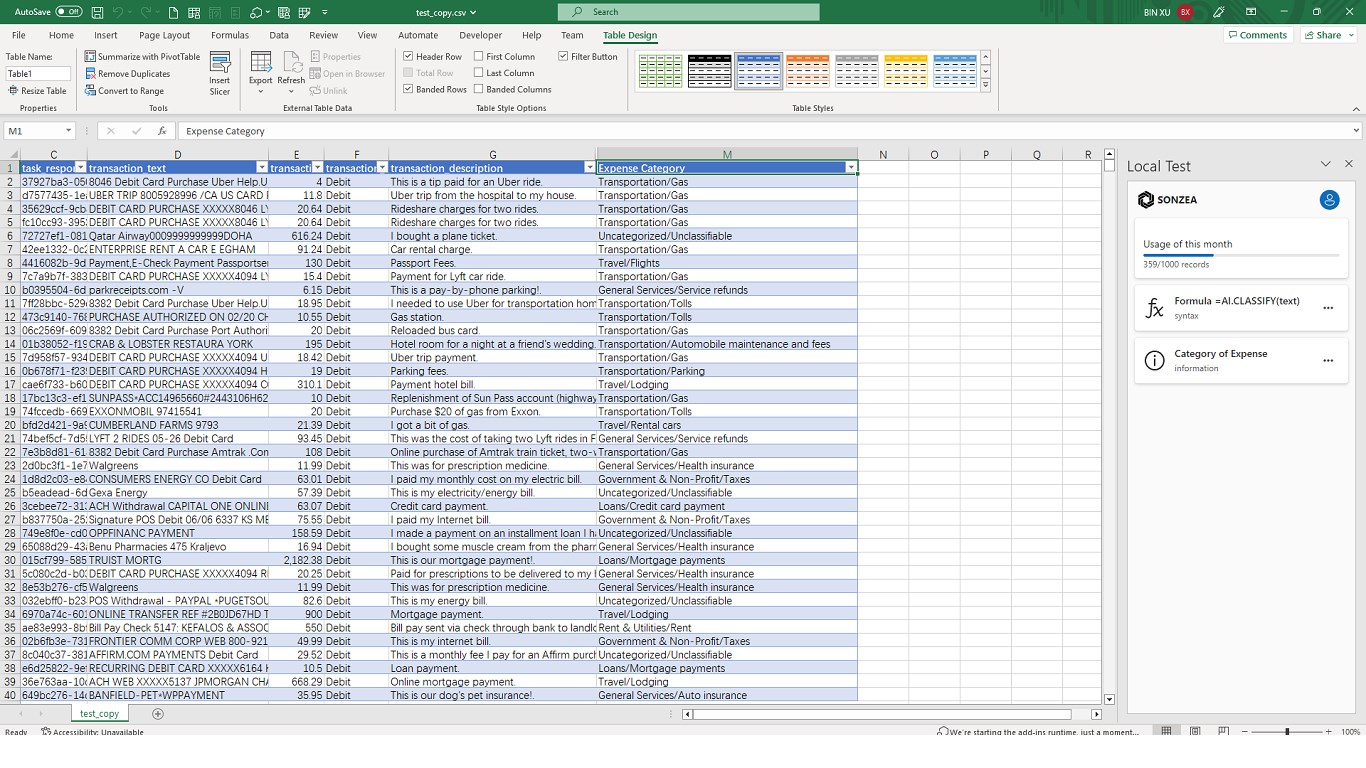
Extra spaces in your data can mess up your formulas and analyses. Clean your data with this simple prompt:
“Trim leading and trailing spaces from all text cells.”
4. Change Text Case
Having inconsistent text cases can be frustrating. Use this prompt to standardize the text case:
“Convert all text to proper case.”

5. Highlight Missing Values
Identifying missing data in a spreadsheet is crucial for any analysis. Use this prompt to highlight missing values automatically:
“Highlight all cells with missing values.”

2. Formula Automation
6. Sum Data Automatically
Sum calculations are fundamental, but they can be tedious to enter. Use this prompt to automatically calculate sums:
“Create a formula to sum all values in column [X].”
7. Apply Conditional Formulas
Conditional formulas, like IF statements, can save you time. You can easily automate them with this prompt:
“Generate an IF formula to check if value in column [X] is greater than [Y].”
8. VLOOKUP Made Easy
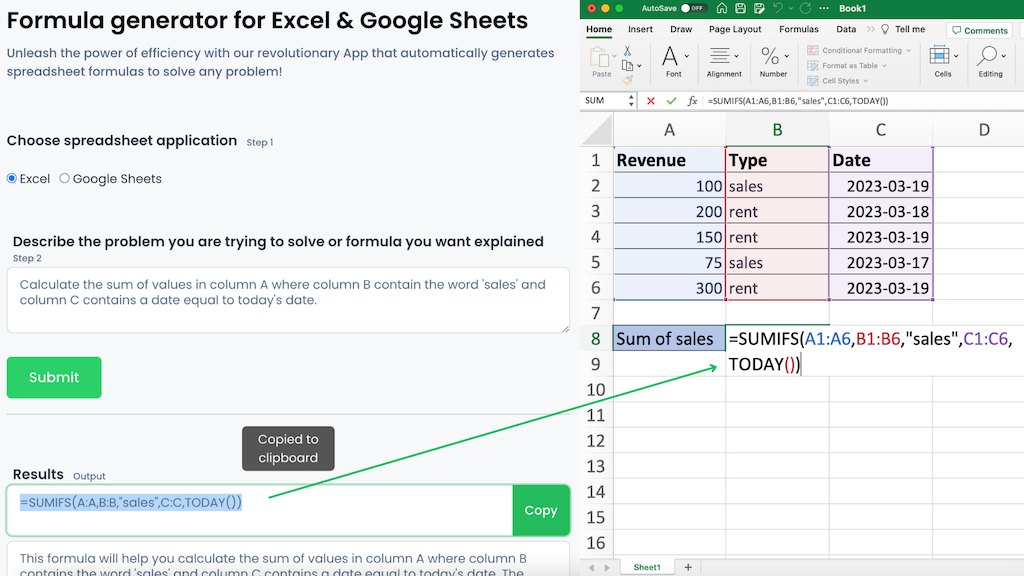
VLOOKUP is one of Excel’s most powerful features. Automate your VLOOKUP formulas with this prompt:
“Create a VLOOKUP formula to search for a value in column [X] and return the corresponding value from column [Y].”
9. Calculate Percentage Change
Calculating percentage change between two numbers is essential in many reports. Automate this calculation with:
“Create a formula to calculate the percentage change between cells [A1] and [B1].”

10. Average Calculation
For quick analysis, use this prompt to automate average calculations:
“Create a formula to calculate the average of all values in column [X].”
3. Formatting Automation
11. Apply Conditional Formatting
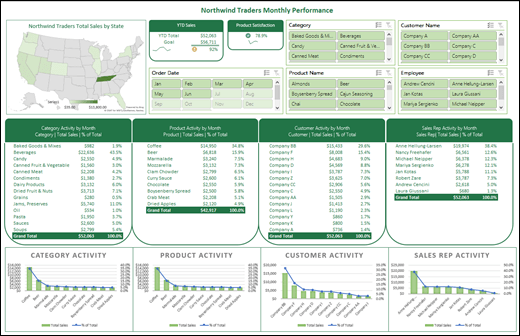
Conditional formatting can help you visualize data better. With this prompt, you can automatically highlight cells based on conditions:
“Apply conditional formatting to highlight all values greater than [X] in column [Y].”
12. Format Headers
Headers are the backbone of any spreadsheet. Automatically format your headers with this simple prompt:
“Bold and center-align all text in row [1].”

13. Autofit Column Widths
Manually adjusting column widths can be time-consuming. Use this prompt to autofit column widths:
“Autofit the width of all columns based on their content.”
14. Apply Cell Borders
Adding borders to your data can make it more readable and organized. Automate this task with:
“Apply borders around all cells in the range [A1:F20].”

15. Format Currency
For financial spreadsheets, formatting numbers as currency is essential. Automate this with the prompt:
“Format all numbers in column [X] as currency.”
4. Data Analysis Automation
16. Generate Pivot Tables
Pivot tables are great for summarizing data, but creating them manually takes time. Automate the process with this prompt:
“Create a pivot table from range [A1:F20] with column [X] as row labels and [Y] as values.”
17. Create Trend Lines
Use this prompt to automate the creation of trend lines for better data visualization:
“Insert a trend line in the chart created from range [A1:F20].”
18. Create Charts Automatically
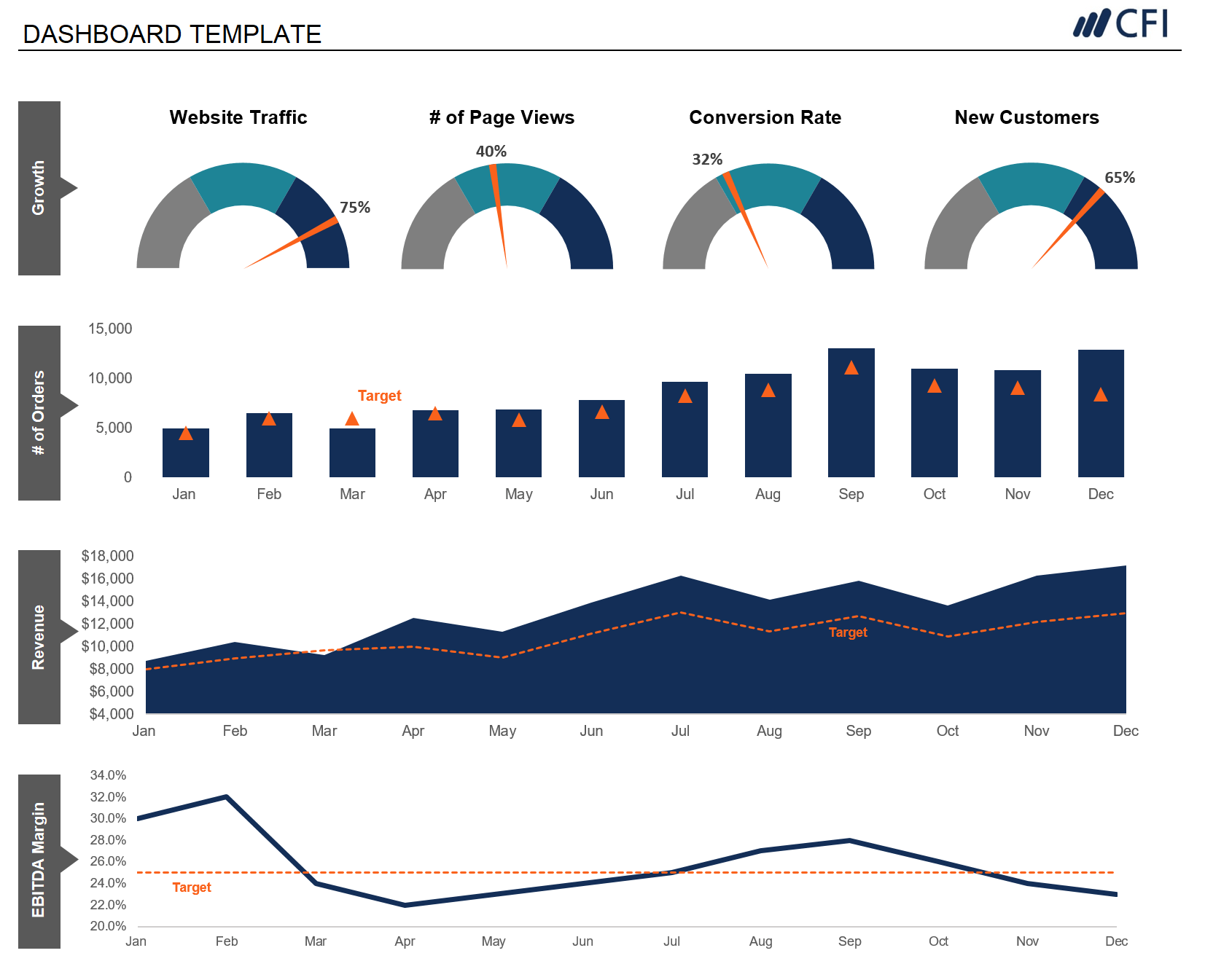
Charts can provide instant insights. You can quickly create them using:
“Create a bar chart from the data in columns [A] to [D].”
19. Filter Data Based on Criteria
Filtering data manually can be tedious, but this prompt makes it easy:
“Filter the data in column [X] to show only values greater than [Y].”
20. Group Data by Categories
Grouping data by specific categories helps in summarizing large datasets:
“Group data in column [X] by unique values and calculate the average of column [Y].”
5. Workflow Automation
21. Auto-Populate Data
Save time by automatically filling in data based on other inputs:
“Automatically fill column [X] with the value from the adjacent cell in column [Y].”
22. Set Up Templates
For repetitive tasks, creating reusable templates is a must. Use this prompt:
“Create a template for the quarterly sales report.”
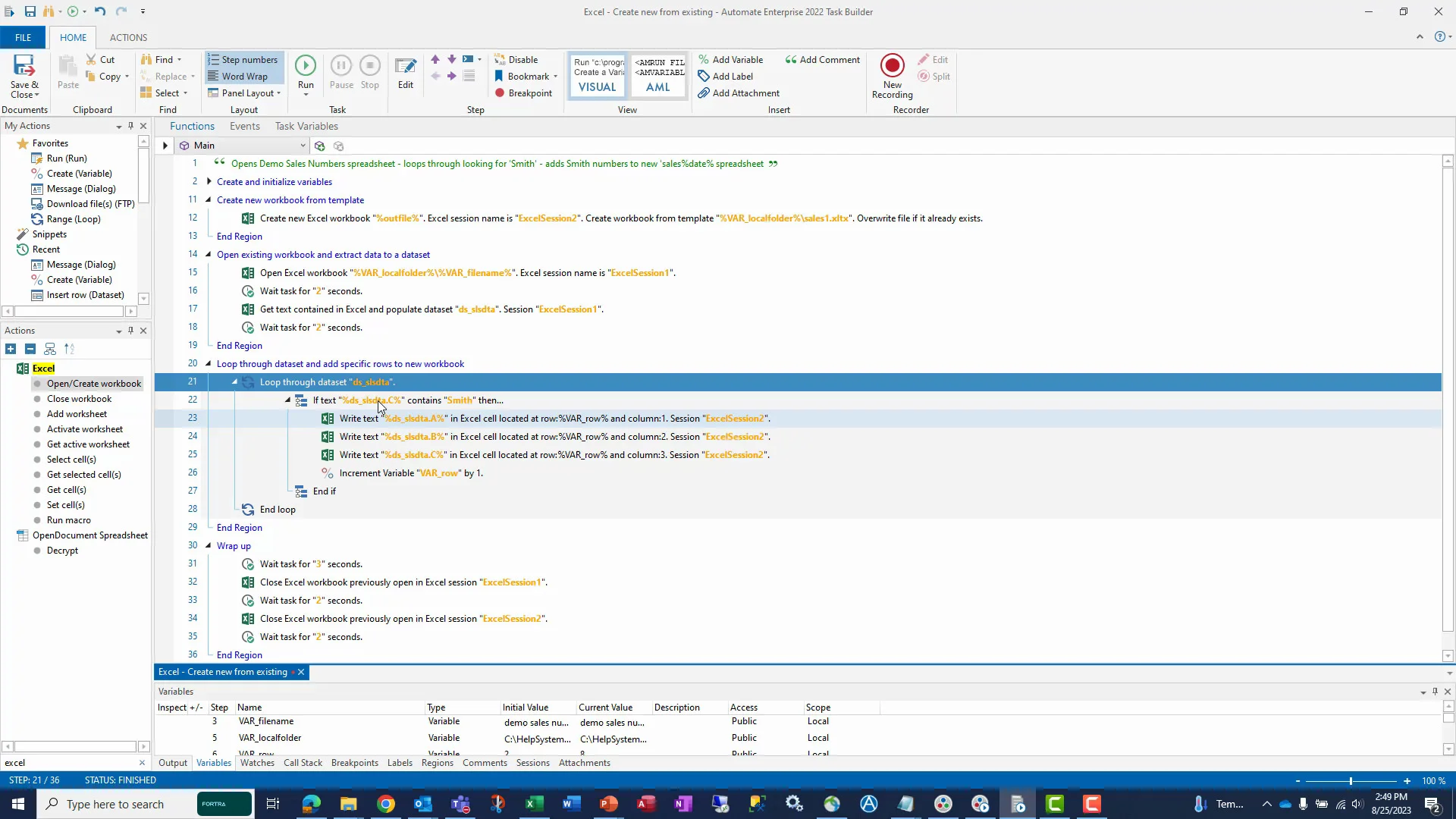
23. Automate Data Entry
Enter data automatically based on predefined rules:
“Automatically enter the date in column [X] when a value is entered in column [Y].”
24. Create Standardized Reports
You can use this prompt to generate reports on a recurring basis:
“Generate a weekly sales report using the data in the range [A1:F20].”
25. Automate Email Notifications
You can even set up email alerts when specific criteria are met:
“Send an email notification if sales exceed [X] in column [Y].”
How to Implement These Prompts
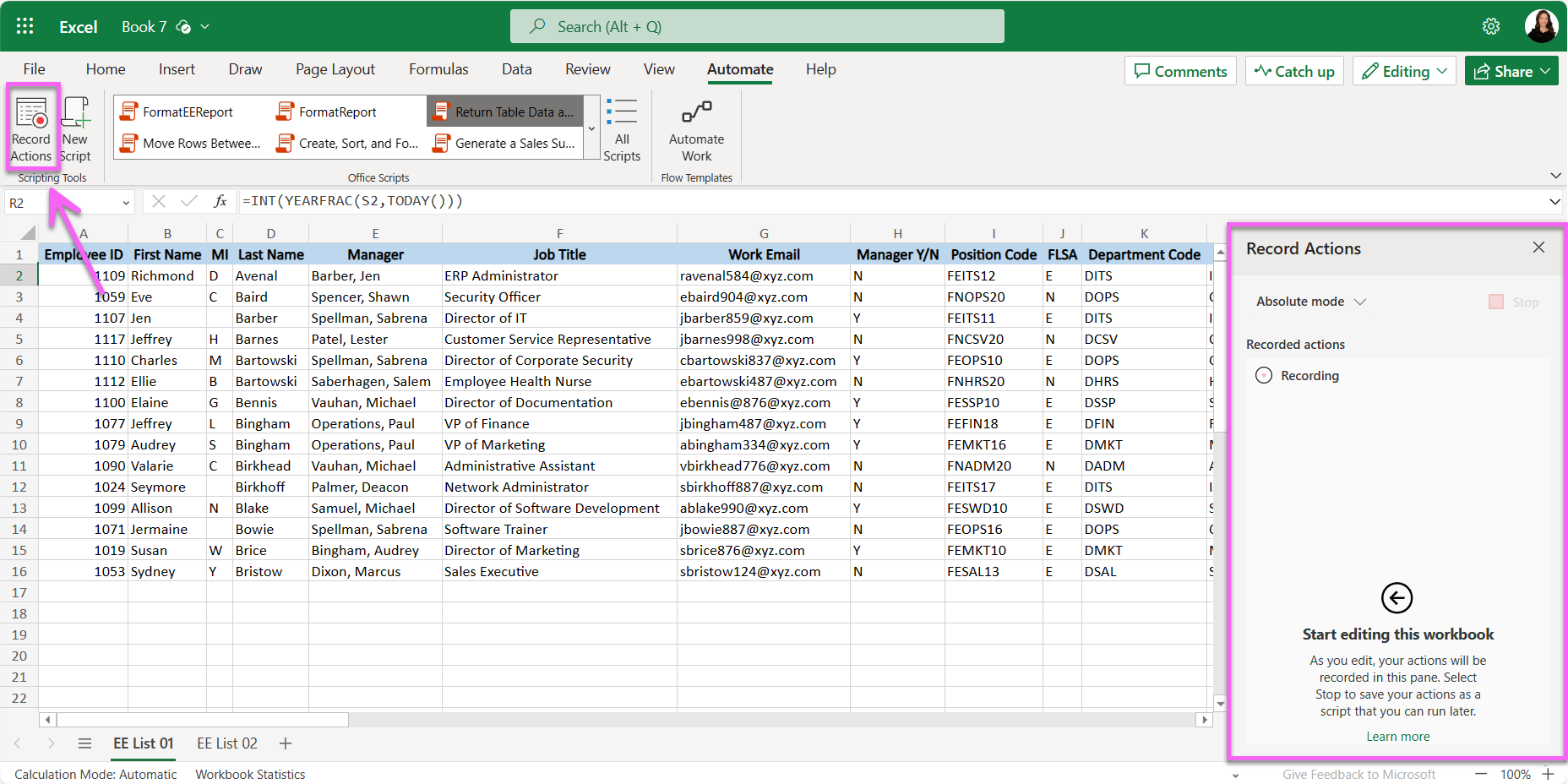
You don’t need complex coding skills to get started with automation. Most of these prompts can be used within Excel’s built-in features like Excel formulas, VBA scripts, or Excel add-ins. Alternatively, you can use AI tools or Excel automation platforms that allow you to input prompts directly for faster results.
Step-by-Step Guide to Use These Prompts:
- Identify the task you perform most frequently.
- Choose the right prompt for the task from the list above.
- Implement it by either using Excel’s built-in features or an automation tool.
- Test the automation to ensure it works correctly.
- Adjust as needed based on the results.
Conclusion
By incorporating 25 simple prompts for automating Excel tasks, you can significantly increase your productivity, reduce errors, and free up more time for higher-level work. Whether you’re working with large datasets, creating reports, or performing repetitive calculations, automation can help you get the job done faster and more efficiently.
So why wait? Start using these Excel prompts today and transform the way you work with spreadsheets. Excel automation is the key to a smarter, more efficient workflow!
Ready to automate your Excel tasks and boost productivity? Start using these prompts today and see how much time you save. Let Excel work for you!